


 254
254The QuickBooks Payroll error PS038 usually occurs when a paycheck is stuck in “Online to send,” preventing users from downloading payroll updates and sending paychecks. Updating QuickBooks Desktop and clearing stuck paychecks are highly recommended alternatives at such times.
Troubleshooting Steps To Fix QuickBooks Error PS038
 24/08/2026
 8Min
8Min
QuickBooks Error PS038 – Solutions To Fix Payroll Stuck Issues
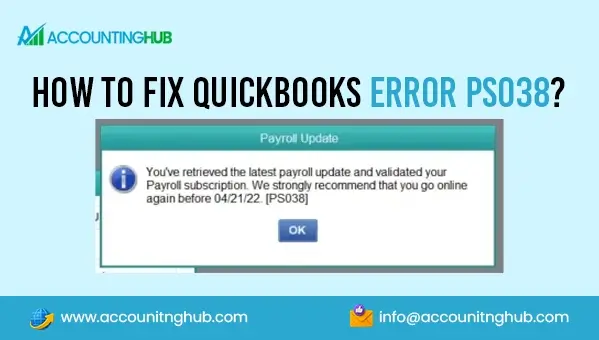
Is your payroll stuck with a message showing QuickBooks error PS038? It’s a common payroll-related issue that users face when trying to download payroll updates or completing payroll-related tasks. Users typically notice that the paychecks remain stuck with “online to send” status. Also, a message pops up on the user’s screen reading:
“You’ve retrieved the latest Payroll update and validated your Payroll subscription. We strongly recommend that you go online again before mm/dd/yyyy. [PS038].”
One of the common reasons for facing this issue is outdated QuickBooks software or unsent payroll data. If you’re also facing the PS038 error in QuickBooks Desktop, try to update your QuickBooks software.
For further, continue reading this post. Here, we have discussed all the causes and quick solutions to fix the error.
Reasons For Facing QuickBooks Payroll Error PS038
As mentioned above, if you’re using an outdated QuickBooks software, you’re likely to face QuickBooks Payroll error PS038. However, if your QuickBooks is updated, and still meet this payroll stuck error, the following factors could be the reasons:
Paychecks Stuck In “Online To Send”
It is one of the most common reasons for PS038. Your QuickBooks software may show that a paycheck still needs to be sent to Intuit even after the payroll transaction is already created or processed. Also, these unsent transactions can prevent you from downloading the QuickBooks Payroll updates.
Corrupted Company Or Payroll Data
If your QuickBooks company file is damaged, it can impact your company payroll records. As a result, QuickBooks is unable to read, validate, or transmit the transactions, which results in the QuickBooks PS038 error.
Incomplete Payroll Updates
Another reason for facing the error code PS038 is incomplete payroll updates. Sometimes, a connection failure, system shutdown, another unexpected issue, or incomplete payroll information can interrupt the payroll update.
Internet Connectivity Problems
QuickBooks needs a stable internet connection to communicate with QuickBooks Payroll servers. However, connection failures, firewall restrictions, network interruptions, or incorrect Internet settings can significantly interrupt the transmission of payroll information and bring QuickBooks PS038 error messages.
Payroll Service Or Subscription Issues
Problems with the payroll subscription can prevent you from downloading payroll updates. If the payroll service is inactive or incorrectly configured, you may encounter QuickBooks Payroll update error PS038 message.
Damaged QuickBooks Installation
Sometimes the QuickBooks Desktop installation itself may contain damaged or missing program components. If files required for payroll updates are corrupted, QuickBooks may fail when attempting to process payroll information.
Company-File Integrity Problems
Other data errors within the company file can indirectly affect payroll processing. But, QuickBooks Verify Data and Rebuild Data utilities can help identify and repair certain types of company-file data problems.
Corrupted CPS Folder
A corrupted CPS folder can damage or disrupt payroll-update files that QuickBooks requires to process payroll updates. When QuickBooks is unable to read or validate these files correctly, the update process may fail and bring the QuickBooks Payroll update error PS038.
How To Fix PS038 Error In QuickBooks Desktop?
The below given methods will help you with the required QuickBooks Desktop PS038 error troubleshooting. Have a look:
Method 1 – Update Your QuickBooks Desktop Program
We suggest you update your QuickBooks Desktop program. Outdated software services is a major reason for facing issues, such as PS038.
- First of all, open your QuickBooks Desktop program, and then go to the Help option.
- Next, click the Update QuickBooks Desktop option.
- After this, choose the Update Now option, and then click Get Updates.
- Once the updates are installed, restart your QuickBooks software.
- Next, go to Employees, and then click My Payroll Service option.
- Here, choose the Send Usage Data option, and then go to the Send/Receive window.
- Click Send All and enter the correct Payroll PIN.
- Now, go to Employees, and then click the Get Payroll Updates option.
- Finally, try to download the entire update.
Method 2 – Fix The Paycheck Stuck As “Online To Send” Problem
To fix QuickBooks error PS038, you need to find the paycheck stuck as “Online to Send” and rectify it when processing the paycheck. Here’s how to do it:
- Open QuickBooks Desktop and go to the Edit tab.
- From here, choose the Advanced option.
- Go to the Choose Filter tab, and look for the Filter list.
- Here, select Detail Level, and choose Summary Only option.
- Again, go to the Choose Filter tab, and then search for the Filter List option.
- After this, click the Online Status option, a drop-down menu will appear on your screen.
- Select Online to Send alternative, and then click the Find button.
- Here, check all the unsent paychecks. If the QuickBooks Desktop PS038 error message still appears, move to the next method.
Method 3 – Verify The Complete Information On Paychecks Stuck In QuickBooks
As we have discussed above, the incomplete payroll information is another reason for facing paychecks stuck issues, such as PS038. Make sure you verify the complete paychecks information. For this, follow the prompts below:
- Firstly you need to perform the steps given in Method 2 “fix the Paycheck Stuck as “Online to Send” Problem.” By this, you will get the list of all the QuickBooks paychecks.
- Now, open the first paycheck and look for the Paycheck Detail option. Click this option.
- You will get the Review Paycheck window on your screen. Select the Earnings tab, and then search for the last item on the list.
- Add the item as a new item again. You will get a prompt for QuickBooks to display a Net Pay Locked window. Here, choose No.
- Next, select the Rate field for the new item that you have added. Also, check for any changes in the Net Pay and taxes.
- Click OK, and then Yes on the Past Transactions message on your screen.
- Now, choose the Save and Close option. Here, click Yes on the Recording Transactions message on your screen.
- Continue to re-open the paycheck and click the Paycheck Details button.
- Next, remove the item that you have added above, and then again ensure that no changes are made in the taxes and Net Pay.
- Click OK and then tap on the Save and Close button to save the above changes.
- You have to follow the above instructions for each paycheck if the QuickBooks error code PS038 still appears.
Method 4 – Run Verify And Rebuild Data Utilities
The Verify and Rebuild data are in-built utilities that help users like you fix issues related to damage to incomplete payroll data. Here’s how to run these tools:
- First of all, open QuickBooks Desktop, and move to the File option.
- Next, choose the Utilities option, and then click the Verify Data tool.
- If the Verify data tool detects any issue, continue running the Rebuild Data tool.
- Again go to the File option, choose Utilities option from the drop-down menu.
- Now, choose Rebuild Data utility to begin. Finally, use the Verify Data tool again to check for any issues.
- Once done, now try sending your paychecks. Unfortunately, if you still face the error, try the next given method.
Method 5 – Configure The CPS Folder Settings
To fix the PS038 error in QuickBooks Desktop, let’s now try to configure the CPS folder settings and rectify corrupted updates.
- Firstly, close QuickBooks Desktop and then move to C:\Program Files (x86)\Common Files\Intuit\QuickBooks\CPS folder.
Note – For 64-bit versions 2022-2026, move to C:\Program Files\Common Files\…
- Now, right-click the CPS folder and choose the Rename option.
- Here, edit the folder name, and make it as CPS.old. Next, you need to restart your QuickBooks Desktop.
- After this, go to the Employees tab, and then choose the Get Payroll updates option.
- By this, QuickBooks will create a new, fresh, and uncorrupted update directory.
- After fixing these corrupted update issues, retry sending paychecks.
Method 6 – Try Using Payroll Data And Company File Backup
We have already discussed that incomplete or corrupted payroll data can bring problems such as an error PS038 in QuickBooks Desktop. Fortunately, you can fix this using the backup of payroll data and company file backup.
- Start this method by moving to the File tab in the top main menu bar of QuickBooks Desktop.
- Here, click the Backup Company option and then choose Local Backup option.
- After this, the Create Backup page will appear on your screen. From here, move to the Local Backup tab.
- Now, go to the Options section, and view the Backup Options window.
- Here, click Browse to find the file. Click OK to save the file in your chosen folder location.
- Once done, make sure you choose a local drive to save your company data and payroll backup.
- Finally, verify that the PS038 in QuickBooks Desktop Payroll is resolved.
Method 7 – Run QuickBooks Desktop As An Administrator
Check whether you are running your QuickBooks Desktop as an Administrator or not when sending paychecks. If not, there are chances for facing payroll being stuck and QuickBooks Payroll PS038 error message.
- Go to your computer’s desktop and go to the QuickBooks Desktop program icon.
- Next, right-click the icon, and choose Run as Administrator from the drop-down menu.
- Start running your QuickBooks Desktop as an Administrator and send paychecks.
Quick Tips To Prevent QuickBooks Payroll PS038 Error
The QuickBooks Payroll PS038 error is typically associated with your paycheck that remains stuck as “online to send.” To prevent this in future, carefully consider the tips below:
- Keep running the latest version of your QuickBooks Desktop Payroll software.
- Make sure you send payroll only after pending paychecks are fully processed.
- Avoid interrupting payroll updates or tax-table downloads.
- You can always use QuickBooks Tool Hub and run the respective data-repair and program repair tools.
- Before submitting payroll, always check for stuck/unsent paychecks.
- Contact our live QuickBooks assistants at +1-888-440-2022 for immediate help whenever you face the QuickBooks error code PS038.
We hope this post has helped you with the necessary QuickBooks Desktop PS038 error troubleshooting. Carefully perform each method discussed above and always run the updated QuickBooks Desktop software. However, if you face any confusion or problem related to this payroll error, contact our live QuickBooks agents at +1-888-440-2022 and get help.
Also Read:
How To Fix QuickBooks Error 3371?
Frequently Asked Questions
What Mainly Causes The QuickBooks Error PS038?
How To Fix QuickBooks Payroll Error PS038?
To fix QuickBooks Payroll error PS038 when sending paychecks, make sure you first check for paychecks marked “Online to send.” Also, verify that payroll is properly synced. If needed, download QuickBooks Tool Hub and run the tools to repair the company file.
Can An Outdated QuickBooks Desktop Version Cause PS038?
Yes, an outdated QuickBooks Desktop software can significantly cause payroll-related errors. Here, you must install the latest QuickBooks Desktop and regularly check for the updates. Once updated, restart QuickBooks and try sending payroll again.
How Do I Prevent PS038 From Happening Again On QuickBooks Desktop?
To prevent PS038 errors in QuickBooks Desktop, keep updating QuickBooks and payroll tax tables. Always wait till the payroll processing is successfully completed. Also, back up your company file data before any payroll changes.
What If QuickBooks Error PS038 Keeps Appearing?
If the PS038 Payroll error is recurring in QuickBooks Desktop, it may indicate a persistent stuck paycheck or file issue. At such times, run Verify Data and Rebuild Data to check for company-file problems. If the issue continues, contact QuickBooks Payroll live agents for assistance.
About Author

Enquire Now
Recent Blogs




Call Us for
instant help
We are available 24x7
